[Windows] PowerShell 스크립팅: 기본
Published:
by
놀이터흙이제맛

- Categories:
- windows 12
- 개요
- PowerShell 최신 버전 설치하기
- 환경 변수
.bat으로 PowerShell 스크립트의 바로가기 만들기- 기본 문법
- 연산자
- 명령어 Cmdlet
- CmdletBinding()
- 제어문
- 함수 Functions
- 데이터 타입
- 기본 단축키
참고 문서
- PowerShell이란? | Microsoft Learn
- PowerShell 설명서 | Microsoft Learn
- Windows, Linux 및 macOS에 PowerShell 설치 | Microsoft Learn
- Microsoft.PowerShell.Core | Microsoft Learn
- about_Operators | Microsoft Learn
- about_Operators 우리말 버전 | Microsoft Learn
- Operators and Expressions in Visual Basic | Microsoft Learn
개요
PowerShell에서 스크립트를 작성하고 사용하는 방법과 문법 등을 정리한 글.
PowerShell 최신 버전 설치하기
iex "& { $(irm https://aka.ms/install-powershell.ps1) } -UseMSI"
WinGet으로 설치할 수도 있음:
winget install -e --id Microsoft.PowerShell
# PowerShell 버전 확인하기
Get-Host | Select-Object Version
환경 변수
ℹ️ Windows Terminal은 새 탭이나 새 창을 열어도 환경 변수가 갱신되지 않으니 필요하면 앱을 재시작할 것
환경 변수 조회
# 모든 환경 변수 보기,
Get-ChildItem env:

# 위와 같음
ls env:

# 환경 변수 중 'path' 출력,
Write-Output $env:path

# 위와 같음
echo $env:path

# 이렇게만 쳐도 됨 (암묵적인 출력은 Write-Output이 처리함)
$env:path

# ; 단위로 줄 바꿔서 출력
$env:path -split ';'
명령어 설명은 이 블로그 내부 링크 | PowerShell 스크립팅: 자주 사용하는 명령어(cmdlet)에서.
로컬 환경 변수 추가/삭제
현재 세션에서만 유효한 로컬 환경 변수. 터미널을 닫으면 사라진다.
# 환경 변수 test 추가
$env:test = 1234

# 환경 변수 test2 추가
[Environment]::SetEnvironmentVariable("test2", "1234", "Process")

# 환경 변수 'test' 삭제
Remove-Item Env:\test
글로벌 환경 변수 추가/삭제
글로벌 환경 변수는 세션이 아니라 사용자 혹은 시스템 전체에 적용되며, 터미널을 닫아도 유지된다.
# 로그인한 사용자의 환경 변수로 'test' 추가
[Environment]::SetEnvironmentVariable("test", "1234", "User")

# 사용자 환경 변수 'test' 삭제
[Environment]::SetEnvironmentVariable("test", $null, "User")

# PATH 덧붙이기
[Environment]::SetEnvironmentVariable("PATH", "$env:PATH;원하는경로", "User")

# PATH 덧붙이기 #2
[Environment]::SetEnvironmentVariable("PATH", $env:PATH + ";원하는경로", "User")

# 시스템 환경 변수로 'test2' 추가. (관리자 권한 필요)
[Environment]::SetEnvironmentVariable("test2", "1234", "Machine")

# 시스템 환경 변수 'test2' 삭제. (관리자 권한 필요)
[Environment]::SetEnvironmentVariable("test2", $null, "Machine")
.bat으로 PowerShell 스크립트의 바로가기 만들기
아래는 Sound Switch 프로세스를 강제로 재시작하는 스크립트다:
# restart-soundswitch.ps1
Stop-Process -Name 'SoundSwitch'
Start-Process -FilePath 'C:\Program Files\SoundSwitch\SoundSwitch.exe'
이 스크립트를 실행하면 되는데, 문제는 PowerShell 스크립트 파일은 PowerShell 환경이 아니면 직접 실행할 수 없다는 것. 그래서 배치 파일(.bat)을 추가로 만들고 거기서 스크립트를 실행한다:
# restart-soundswitch.bat
@echo off
powershell -Executionpolicy Remotesigned -File .\restart-soundswitch.ps1
이제 배치 파일의 바로가기를 만들어서 적절한 곳에 두면 끝. 혹시라도 pwsh가 안 되면 Powershell 혹은 Powershell.exe로 바꾸면 됨.
ℹ️ -ExecutionPolicy RemoteSigned는 로컬 스크립트는 허용하고, 인터넷에서 받은 스크립트는 서명을 요구한다는 의미다. 실행 정책을 완전히 무시하는 -ExecutionPolicy Bypass도 있음.
기본 문법
변수 선언과 사용
# 모든 변수 조회
Get-Variable

# 변수 선언
$abc = 1234

$abc

# 1234

gv abc

# Name      Value
# ----      -----
# abc       1234
스니펫: 현재 경로를 로컬 변수로 만들기
cd C:\dev\temp\
$d1 = (pwd).path
$d1

# C:\dev\temp
스니펫: 현재 경로를 프로필 변수로 만들기
ac $PROFILE "`$d2 = '$((pwd).Path)'"
. $profile

ac $PROFILE "`$d2 = '$((pwd).Path)'"
. $profile
$d2

# C:\dev\test
🐶복잡한데 설명을 해보자면:
- 일단 큰따옴표로 감싸는 건 필수:
ac $PROFILE "..." - 선언할 변수 이름이 변수로 해석(치환)되지 않고
$가 그대로 출력되도록 백틱으로 이스케이프함`$d2 $()로 하위 연산식을 만들어서 거기서 현재 경로 가져오기:$((pwd).Path)- 경로에 빈 칸이 있을 수 있어서 오류를 방지하기 위해 작은따옴표 감싸기:
'$((pwd).Path)'
따옴표 "" ''
PowerShell에서 작은따옴표('')로 감싸진 문자열은 큰따옴표("")와 다르게 문자 그대로 취급되며, 이 안에 포함된 변수나 표현식은 평가되지 않고 그대로 출력된다:
$i = 5
"The value of $i is $i."
# The value of 5 is 5.

'The value of $i is $i.'
# The value of $i is $i.

"The value of $(2+3) is 5."
# The value of 5 is 5.

'The value of $(2+3) is 5.'
# The value of $(2+3) is 5.

"$env:LOCALAPPDATA\abcd"
# C:\Users\fixalot\AppData\Local\abcd

'$env:LOCALAPPDATA\abcd'
# $env:LOCALAPPDATA\abcd
따옴표간 차이는 이 정도고, 나머지는 대체로 동일한 의미로 쓰인다.
백틱 `
about_Special_Characters - PowerShell | Microsoft Learn
특수 문자 시퀀스(special character sequences, 이스케이프 시퀀스라고도 함)를 만드는 데 사용하는 문자.
주로 큰따옴표 문자열에서 줄 바꿈 등의 특수 문자를 표현하기 위해 사용된다 (작은따옴표 문자열에서는 이스케이프 시퀀스가 해석되지 않는다):
echo "a `n b"

# a
#  b

echo 'a `n b'

# a `n b
PowerShell의 특수 문자 시퀀스
`0: Null`a: Alert`b: Backspace`e: Escape (added in PowerShell 6)`f: Form feed`n: New line`r: Carriage return`t: Horizontal tab`u{x}: Unicode escape sequence (added in PowerShell 6)`v: Vertical tab
특수 문자 시퀀스가 아닌 문자가 백틱 뒤에 오면 원래 문자 그대로 취급된다:
echo ''

# 출력 없음

echo `'`'

# ''
중괄호 {}
TODO
파이프라인 입력 Pipeline Input |
어떤 명령의 출력을 다른 명령의 입력으로 전달하는 데 사용된다. 입력을 스트림으로 전달한다고 하기도 한다.
ℹ️ 파이프라인으로 이어지는 명령을 한 라이너(one-liners)라고 함.
# 123을 Node.js로 실행한 solution.js 파일에 표준입력으로 보내기
echo 123 | node .\solution.js

# 현재 실행 중인 프로세스 목록을 정렬하여 Select-Object로 보내 상위 5개만 선택
Get-Process | Sort-Object CPU -Descending | Select-Object -First 5

# Logs 디렉터리의 *.log 파일 중 Error가 포함된 줄 출력
Get-ChildItem -Path C:\Logs -Filter *.log | Select-String -Pattern "Error"
줄 바꿈
줄을 바꿔도 명령을 이어가도록 하려면 줄 마지막에 한 칸을 띄우고 백틱(`)을 붙인다:
# js 파일을 찾아서 temp.md에 파일 이름을 작성하는 스크립트
Get-ChildItem `
  -Path . `
  -Recurse `
  -Filter *.js | `
    Select-Object `
      -Property FullName > temp.md

# 아래처럼 한 줄로 작성한 것과 같음
# Get-ChildItem -Path . -Recurse -Filter *.js | Select-Object -Property FullName > temp.md
줄 끝이 파이프(|)일 땐 백틱(`)을 생략해도 된다:
Get-ChildItem |
  Where-Object name -eq 'temp.md'
한 줄에 여러 명령어 작성하기
세미콜론(;)으로 각 명령어를 구분할 수 있음:
Get-Process; Get-Service

$Service = 'w32time'; Get-Service -Name $Service
코멘트 처리
# 한 줄 코멘트
Get-ChildItem # 이것도 한 줄 코멘트
<#
   이것은 여러줄 코멘트
#>
전개 Splatting @<Array> @<HashTable>
배열이나 해시 테이블의 요소들을 개별적인 인수로 전개하는 문법.
배열:
function Add-Numbers {
    param($a, $b, $c)
    "$a + $b + $c = " + ($a + $b + $c)
}

$argsArray = 1, 2, 3
Add-Numbers @argsArray

# @argsArray가 1 2 3 으로 전개되며 1 + 2 + 3 = 6 출력
해시 테이블:
function Show-User {
    param($Name, $Age)
    "Name: $Name, Age: $Age"
}

$params = @{
    Name = "Alice"
    Age  = 30
}

Show-User @params

# params가 -Name "Alice" -Age 30 로 전개되며 Name: Alice, Age: 30 출력
TODO https://learn.microsoft.com/en-us/powershell/module/microsoft.powershell.core/about/about_splatting?view=powershell-7.6
연산자
리디렉션 연산자 > >>
명령어 > 파일명  # 파일이 없으면 생성하고, 있으면 기존내용을 지움
명령어 >> 파일명  # 파일이 없으면 생성하고, 있으면 기존내용을 추가
파일에 문자열 추가(append)하기:
# FILE_NAME에 'SOME_TEXT' 문자열 추가
"SOME_TEXT" >> FILE_NAME

# 빈 줄 하나 먼저 추가하기
"`nSOME_TEXT" >> FILE_NAME
산술 연산자
TODO https://learn.microsoft.com/en-us/dotnet/visual-basic/programming-guide/language-features/operators-and-expressions/arithmetic-operators
비교 연산자
TODO https://learn.microsoft.com/en-us/dotnet/visual-basic/programming-guide/language-features/operators-and-expressions/comparison-operators
연결 연산자
TODO https://learn.microsoft.com/en-us/dotnet/visual-basic/programming-guide/language-features/operators-and-expressions/concatenation-operators
논리 연산자, 비트 연산자
TODO
- https://learn.microsoft.com/en-us/dotnet/visual-basic/programming-guide/language-features/operators-and-expressions/logical-and-bitwise-operators
- https://learn.microsoft.com/en-us/dotnet/csharp/language-reference/operators/boolean-logical-operators
특수 연산자 Special Operators
Grouping operator ( ) 그룹화 연산자
그룹화 연산자의 기본 기능은 연산 우선 순위를 강제로 지정하는 것.
$result = (2 + 2) * 3
$result -eq 12

# True
그리고 추가로 3가지 기능이 있는데,
명령의 결과를 표현식에 참여시킴:
(Get-Item *.txt).Count -gt 10

# False
Get-Item *.txt는 표현식이 아니지만 ()로 감싸면 객체로 취급돼서 연산자나 멤버 접근이 가능해진다.
파이프라인 맨 앞에서 쓰면 결과를 전부 메모리에 모은 뒤 전달:
보통 파이프는 객체를 하나씩 흘려보내는데, ()로 감싼 명령을 파이프 맨 앞에 두면 그 명령을 끝까지 실행해서 결과를 전부 모은 다음에 파이프로 넘긴다.
뒤 단계 처리가 앞 단계의 열거(enumeration)를 방해하지 못하게 보장하는 효과도 있음.
대입문(assignment)을 감싸면 그 값이 출력됨:
($var = 1 + 2)

# 3

($var = 1 + 2) -eq 3

# True
원래 $var = 1 + 2는 아무것도 출력하지 않는데, ()로 감싸면 대입된 값이 통과(pass through)돼서 출력되고, 다른 표현식에도 쓸 수 있게 된다.
Subexpression operator $( ) 하위 식 연산자
괄호 안 표현식의 실행 결과를 반환한다. 명령의 결과를 문자열 혹은 또다른 명령에 포함시킬 때 사용한다:
# yarn global bin: Yarn의 글로벌 경로를 반환하는 명령어
# 경로를 받아온 다음 해당 경로로 전환
cd $(yarn global bin)
$count = 5

# ✅ '5 개' 출력
echo "$count 개"

# ✅ '5개' 출력
echo "$($count)개"

# ❌ 이렇게 하면 '$count개'라는 변수를 찾기 때문에 아무것도 안나옴
echo "$count개"
배열 하위 식 연산자 Array subexpression operator @( )
괄호 안 표현식을 배열로 만들어 반환한다. 배열을 생성하거나 변환할 때 사용한다. @()만 실행하면 빈 배열이 생성된다.
@('*.txt', '*.md') | ForEach-Object { Get-ChildItem -Filter $_ -Recurse }
TODO https://learn.microsoft.com/en-us/powershell/module/microsoft.powershell.core/about/about_operators?view=powershell-7.6#array-subexpression-operator–
해시 테이블 리터럴 구문 Hash table literal syntax @{}
TODO
파이프라인 연산자 |
둘 이상의 명령어를 연결. 리눅스와 비슷하다. '앞에 오는 명령의 출력을 뒤에 오는 명령으로 보낸다(파이프한다)'라고 표현한다.
예를 들어 유틸리티 모듈에는 Format-List라는 리스트를 세로 목록으로 출력하는 명령이 있는데, 파이프를 활용하면:
Get-FileHash .\upload.me | Format-list

# Algorithm : SHA256
# Hash      : 90B56139615DA8FE23201FD4C5FFE6E40EB16A8D544387B8056D2E1CF8D4AFF9
# Path      : C:\dev\upload.me
이렇게 된다.
호출 연산자 Call Operator &
호출 연산자는 문자열을 실행할 때 사용한다.
JavaScript의 eval()과 비슷하다. 예를 들어 서브라임의 실행 파일을 전체 경로로 실행하려고 할 때, 공백을 포함한 전체 경로를 지정하려면 다음처럼 해야하는데:
# C:\Program Files\Sublime Text\subl.exe 출력됨
'C:\Program Files\Sublime Text\subl.exe'
이러면 파일을 실행하는게 아니라 문자열을 출력해 버린다. 이럴 땐 호출 연산자를 앞에 붙여서 문자열을 스크립트로 실행하도록 하면 된다:
# 서브라임을 실행함
& 'C:\Program Files\Sublime Text\subl.exe'
그런데 호출 연산자는 문자열을 구문 분석 하지 않는다고 한다. 그래서 명령어의 파라미터를 사용할 수 없다:
$c = "Get-Service -Name Spooler"

& $c

# ❌ &: The term 'Get-Service -Name Spooler' is not recognized as a name of a cmdlet, function, script file, or executable program.
# Check the spelling of the name, or if a path was included, verify that the path is correct and try again.
이럴 땐 호출 연산자 대신 Invoke-Expression을 사용하라고 함:
Invoke-Expression $c

# Status   Name               DisplayName
# ------   ----               -----------
# Running  Spooler            Print Spooler
백그라운드 연산자 Background operator &
명령을 백그라운드에서 실행한다. 호출 연산자와 다르게 앰퍼샌드가 명령 마지막에 위치한다.
# https://docs.microsoft.com/en-us/powershell/module/microsoft.powershell.core/about/about_operators?view=powershell-7.3#background-operator-

Get-Process -Name pwsh &

# 위와 같음
Start-Job -ScriptBlock {Get-Process -Name pwsh}
캐스트 연산자 Cast operator [ ]
TODO
쉼표 연산자 Comma operator ,
TODO
점 소싱 연산자 Dot sourcing operator .
. $PROFILE
특정 스크립트를 읽어서 현재 범위에 변수, 함수등을 재정의한다. 리눅스의 source와 비슷. . 뒤에 공백이 한 칸 있어야 함.
명령어 Cmdlet
이 블로그 내부 링크 | PowerShell 스크립팅: 자주 사용하는 명령어
CmdletBinding()
TODO
제어문
if
if (<test1>)
  {<statement list 1>}
[elseif (<test2>)
  {<statement list 2>}]
[else
  {<statement list 3>}]
else if가 아니라 elseif인 점과 연산자를 제외하면 다른 언어와 크게 다르지 않음.
$condition = $true
if ($condition) {
  echo "Hello there!"
} else {
  echo "I'm Waldo."
}
if 조건식에서 사용하는 연산자:
- 논리 연산자
-not:$false를$true로, 또는$true를$false로 뒤집는다.!:-not의 별칭-and-or-xor
- 비교 연산자
-eq: case-insensitive equality-ieq: case-insensitive equality-ceq: case-sensitive equality-ne: case-insensitive not equal-ine: case-insensitive not equal-cne: case-sensitive not equal-gt: greater than-igt: greater than, case-insensitive-cgt: greater than, case-sensitive-ge: greater than or equal-ige: greater than or equal, case-insensitive-cge: greater than or equal, case-sensitive-lt: less than-ilt: less than, case-insensitive-clt: less than, case-sensitive-le: less than or equal-ile: less than or equal, case-insensitive-cle: less than or equal, case-sensitive
- 비트 연산자
-band: binary AND-bor: binary OR-bxor: binary exclusive OR-bnot: binary NOT-shl: shift left-shr: shift right
$con = 123
if (123 -eq $con) {
  echo 'Hi'
}
이 외에 라이크 검색, 정규식 논리 연산자 등이 있으니 여기를 볼 것.
switch
switch (<test-expression>)
{
    <result1-to-be-matched> {<action>}
    <result2-to-be-matched> {<action>}
}

switch [-regex | -wildcard | -exact] [-casesensitive] (<test-expression>)
{
    "string" | number | variable | { <value-scriptblock> } { <action-scriptblock> }
    default { <action-scriptblock> } # optional
}
switch ('a') {
  'a' { echo "It's a." }
  'b' { echo "It's b." }
  'c' { echo "It's c." }
}
break도 쓸 수 있는데, PowerShell에선 Java나 JavaScript와 다르게 다음 실행문으로 이어지는 것을 막는게 아니라 switch를 중단하는 것을 의미한다. 웬 뜬금없이 중단이냐 하겠지만 PowerShell의 switch는 파라미터의 수 만큼 반복한다.
아래를 실행해 보면:
switch (1, 3) {
  1 {"It is one."}
  2 {"It is two."}
  3 {"It is three."; break}
  4 {"It is four."}
  3 {"Three again."}
}

switch (3, 1) {
  1 {"It is one."}
  2 {"It is two."}
  3 {"It is three."; break}
  4 {"It is four."}
  3 {"Three again."}
}
첫 번째 switch는 "It is one. It is three." 둘 다 출력하지만 두 번째 switch는 "It is three."만 출력한다. break를 만나서 switch를 중단했기 때문이다.
함수 Functions
함수 정의
일단 생김새는 이렇다:
function Get-PSVersion {
  $PSVersionTable.PSVersion
}
함수 정의는 단순히 커맨드라인에서 함수 리터럴을 입력하면 된다. 하지만 이렇게 하면 현재 세션에만 유효한 함수가 되므로, PowerShell 프로파일에 작성하거나 스크립트 모듈로 등록한다.
프로파일은 일단 한 번 추가하면 $PROFILE 변수에서 파일 경로를 찾을 수 있음:
Write-Output $PROFILE
# C:\Users\fixalot\Documents\PowerShell\Microsoft.PowerShell_profile.ps1
함수의 이름은 Cmdlet의 작명 규칙을 따르는게 좋다.
메모리에 함수가 로드됐는지는 'Function PSDrive'란 곳에서 볼 수 있다고 함:
# Function PSDrive에서 'Get-'으로 시작하고 'Version'으로 끝나는 함수 조회
Get-ChildItem -Path Function:\Get-*Version

# ABC 함수를 Function PSDrive에서 제거
Get-ChildItem -Path Function:\ABC | Remove-Item
파라미터
function Test-Fn {
  param (
    $Param1
  )
  echo $Param1
}
함수 블록 내에 param(a, b, c, ...)으로 파라미터를 정의한다. 단축 표기는 아래와 같다:
function Test-Fn($Param1) {
  echo $Param1
}

Test-Fn 123

# 123

Test-Fn -Param1 789

# 789
파라미터가 여러 개일 경우 다음처럼 정의하고:
function Test-Fn($Param1, $Param2) {
  Write-Host '$Param1:'$Param1
  Write-Host '$Param2:'$Param2
}
호출할 때는 파라미터 구분을 -파라미터이름으로 지정하거나, 아니면 아예 생략한 뒤 순서에 맞춰 공백으로 구분한다:
Test-Fn abc def

# $Param1: abc
# $Param2: def

Test-Fn -Param2 abc -Param1 def

# $Param1: def
# $Param2: abc
하나의 파라미터는 쉼표(,)로 구분된 값 여러 개를 전달할 수 있다. 이 때 해당 파라미터는 배열처럼 다룰 수 있다:
function Test-Fn($Param1) {
  Write-Host '$Param1:'$Param1
}

Test-Fn 1, 2, 3

# $Param1: 1 2 3

Test-Fn 1,2,3

# $Param1: 1 2 3

function Test-Fn2($Param1) {
  Write-Host '$Param1[0]:'$Param1[0]
  foreach ($ele in $Param1) {
    Write-Host '$ele:'$ele
  }
}

Test-Fn2 4, 5, 6

# $Param1[0]: 4
# $ele: 4
# $ele: 5
# $ele: 6
타입 제한
파라미터의 이름 앞에 대괄호([])로 감싸고 타입을 지정한다. 이렇게 하면 해당 타입이 아닌 값이 전달됐을 때 메시지와 함께 에러가 발생한다:
function Test-Fn3([string]$Param1) {}

Test-Fn3 123
Test-Fn3 a

function Test-Fn4([number]$Param1) {}

Test-Fn3 123
Test-Fn3 a

# InvalidOperation: Unable to find type [number].

function Test-Fn5([boolean]$Param1) {}

Test-Fn5 true

# Test-Fn5: Cannot process argument transformation on parameter 'Param1'. Cannot convert value "System.String" to type "System.Boolean". Boolean parameters accept only Boolean values and numbers, such as $True, $False, 1 or 0.

Test-Fn5 True

# Test-Fn5: Cannot process argument transformation on parameter 'Param1'. Cannot convert value "System.String" to type "System.Boolean". Boolean parameters accept only Boolean values and numbers, such as $True, $False, 1 or 0.

Test-Fn5 $True
Test-Fn5 $False
string 타입은 배열도 되는데 딱히 뭔가를 제한 기능은 음슴(왜냐면 길이 1짜리 배열도 있으니께):
function Test-Fn6([string[]]$Arr) {}

Test-Fn6 1
Test-Fn6 $True
Test-Fn6 a, b
필수 파라미터로 지정
Parameter(Mandatory) 혹은 [Parameter(Mandatory=$true)]로 해당 파라미터가 필수임을 지정한다:
# 단축 표기로 해도 되지만 가독성을 위해서 풀어서 씀
function Test-Fn7 {
  param (
    [Parameter(Mandatory)]
    [string]$Param1
  )
  Write-Host '$Param1:'$Param1
}

Test-Fn7

# cmdlet Test-Fn7 at command pipeline position 1
# Supply values for the following parameters:
# Param1:
# Test-Fn7: Cannot bind argument to parameter 'Param1' because it is an empty string.
필수 파라미터를 전달하지 않으면 이제라도 입력하라는 프롬프트가 뜬다. 이 때 ctrl + c하면 에러가 뙇.
Parameter(Mandatory)의 부수효과로 데이터 개수 제한이 있다. 위 예시에서 $Param1의 데이터 타입은 string인데 배열이 아니라서 딱 하나의 값만 허용한다:
Test-Fn7 -Param1 1
$Param1: 1

Test-Fn7 -Param1 1, 2, 3

# Test-Fn7: Cannot process argument transformation on parameter 'Param1'. Cannot convert value to type System.String.
기본값 지정
기본값은 ValidateNotNullOrEmpty()과 함께 등호(=)로 할당한다:
function Test-Fn9 {
  param (
    [ValidateNotNullOrEmpty()]
    [string]$Param1 = 'default value'
  )
  Write-Host '$Param1:'$Param1
}

Test-Fn9

# $Param1: default value
유효한 데이터 지정
특정 파라미터의 값으로 허용된 값만 받도록 제한하는 방법이다. ValidateSet()으로 지정한다:
function Test-Fn10 {
  param (
    [Parameter(Mandatory)]
    [ValidateSet('production', 'stage', 'test', 'vpn')]
    [string]$Server
  )
  Write-Host 'Chosen one:'$Server
}

Test-Fn10 -Server production

# Chosen one: production

Test-Fn10 -Server my-server

# Test-Fn10: Cannot validate argument on parameter 'Server'. The argument "my-server" does not belong to the set "production,stage,test,vpn" specified by the ValidateSet attribute. Supply an argument that is in the set and then try the command again.
이렇게 지정한 값은 탭 키를 눌러 자동 완성이 된다:
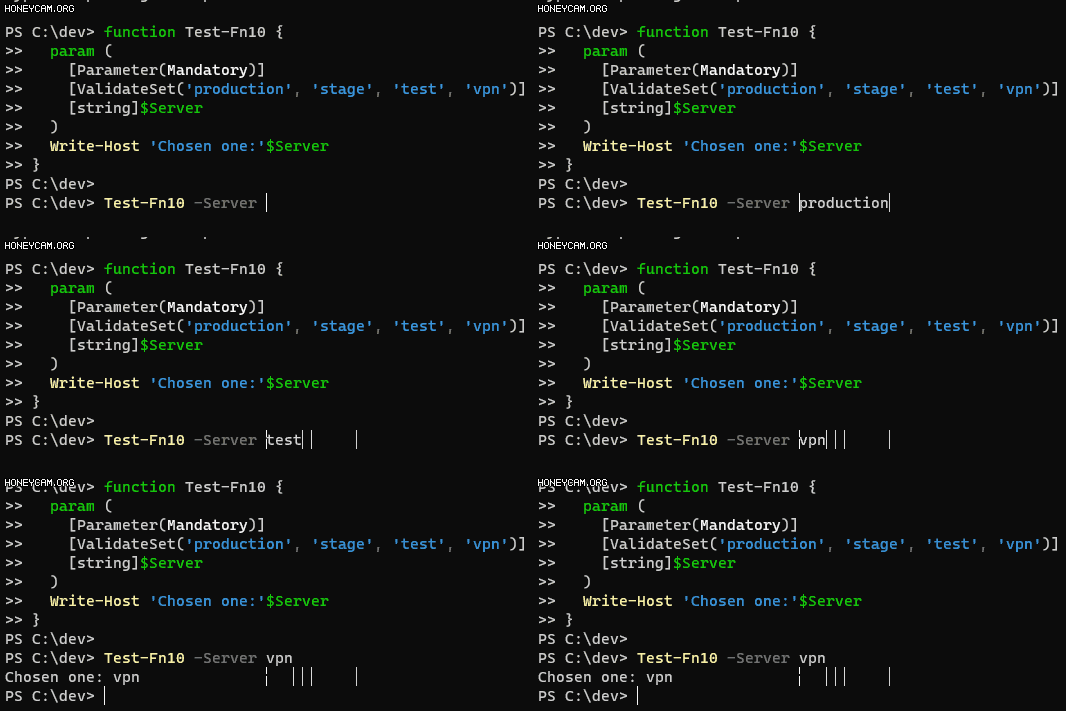
아래 예시는 ValidateSet()와 해시 테이블을 응용해서 ssh로 서버에 접속할 때 쓰는 함수다:
$hashtable = @{
  production = '1.2.3.4';
  stage = '2.3.4.5';
  test = '3.4.5.6';
  vpn = '4.5.6.7'
}

function Connect-RemoteServer {
  param (
    [Parameter(Mandatory)]
    [ValidateSet('production', 'stage', 'test', 'vpn')]
    [string]$Server
  )
  $target = $hashtable.$Server;
  echo $target
  ssh "ubuntu@$target"
}

Connect-RemoteServer -Server vpn
@hashtable.keys를 ValidateSet()에서 받아주면 좋겠는데 에러가 남:
function Connect-RemoteServer {
  param (
    [ValidateSet($hashtable.keys)]
    # ... 생략
  )
}

# ParserError: C:\Users\fixalot\Documents\PowerShell\Microsoft.PowerShell_profile.ps1:24
# Line |
#   24 |      [ValidateSet($hashtable.keys)]
#      |                   ~~~~~~~~~~~~~~~
#      | Attribute argument must be a constant or a script block.
데이터 타입
Types - PowerShell | Microsoft Learn
PowerShell에서 지원하는 데이터 타입은 아래와 같다:
- Special types
- The void type
- The null type
- The object type
- Value types
- Boolean: PowerShell에서 불리언 값은
$true,$false로 표현함 - Character
- Integer
- Real number
- float and double
- decimal
- The switch type
- Enumeration types
- Action-Preference type
- Confirm-Impact type
- File-Attributes type
- Regular-Expression-Option type
- Boolean: PowerShell에서 불리언 값은
- Reference types
- Strings
- Arrays
- Hashtables
- The xml type
- The regex type
- The ref type
- The scriptblock type
- The math type
- The ordered type
- The pscustomobject type
🙄… 생각보다 많다.
참고로 데이터 타입은 GetType() 메서드로 확인할 수 있음:
$n1 = 1
$n1.GetType()

# IsPublic IsSerial Name                                     BaseType
# -------- -------- ----                                     --------
# True     True     Int32                                    System.ValueType

$n2 = 2.3
$n2.GetType()

# IsPublic IsSerial Name                                     BaseType
# -------- -------- ----                                     --------
# True     True     Double                                   System.ValueType

$s1 = 'Hello'
$s1.GetType()

# IsPublic IsSerial Name                                     BaseType
# -------- -------- ----                                     --------
# True     True     String                                   System.Object
해시 테이블 Hashtables
$hash = [ordered]@{ Number = 1; Shape = "Square"; Color = "Blue"}

$hash

# Name                           Value
# ----                           -----
# Number                         1
# Shape                          Square
# Color                          Blue

$hash.keys

# Number
# Shape
# Color

$hash.values

# 1
# Square
# Blue

$hash.Number

# 1
TODO
기본 단축키
PowerShell 7.6.4 부터 기록
- ctrl + shift + p: 커맨드 팔레트 열기
- ctrl + shift + 숫자: (숫자별로 정해진 프로필로) 새 탭 열기
- ctrl + shift + w: 현재 탭 닫기
- ctrl + alt + 숫자: 해당 번호의 탭으로 포커스 이동
- ctrl + shift + k:
버퍼 지우기. 현재 화면과 스크롤백 버퍼에 저장된 출력을 삭제한다.clear명령 실행과 결과 같음 - ctrl + shift + f:
찾기. 현재 화면과 스크롤백 버퍼의 텍스트를 검색한다. - ctrl + shift + up/down/pageup/pagedown/home/end: 스크롤 이동